The window
User guide › The window
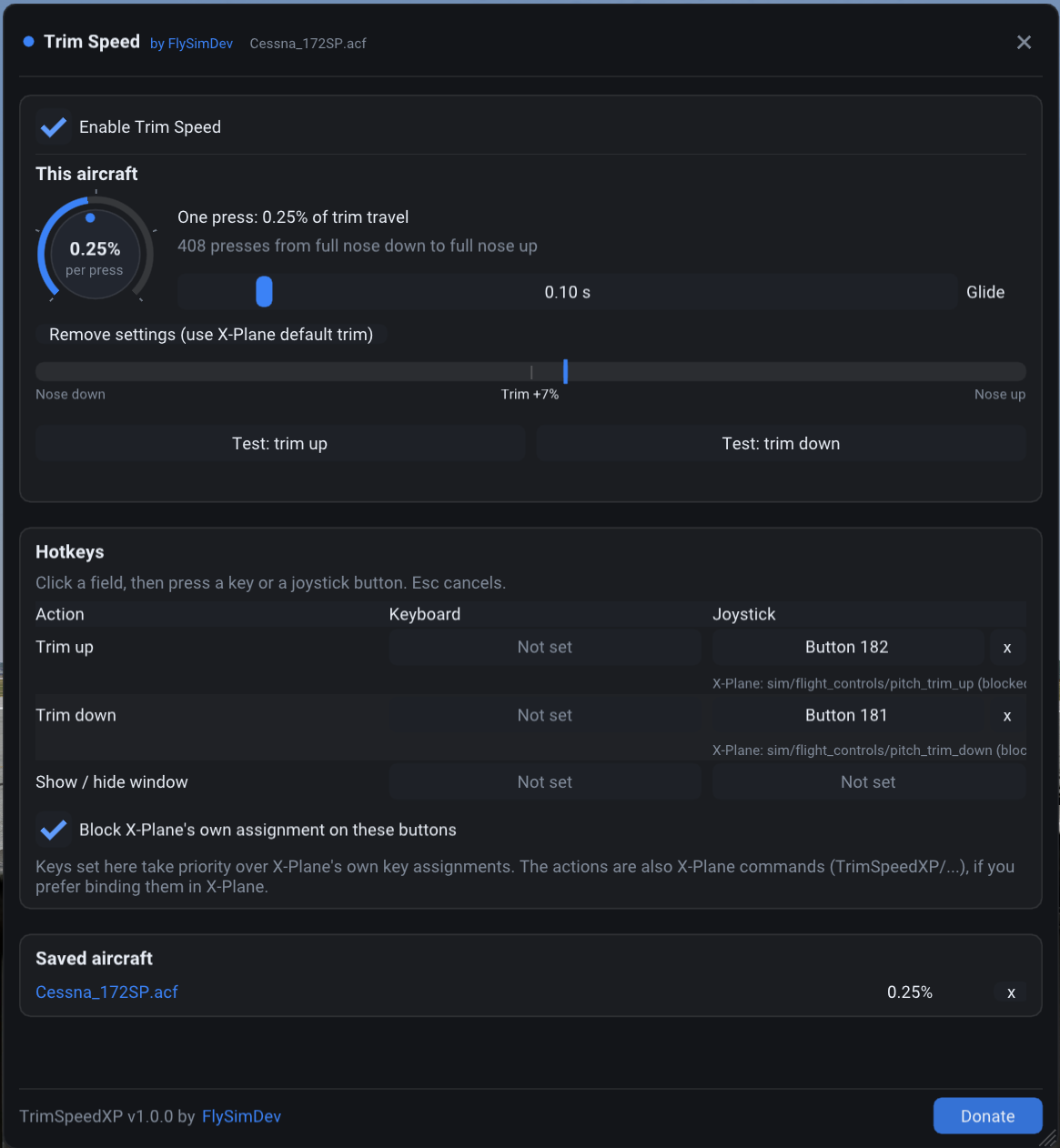
You open and close the window from Plugins › FSD Trim Speed XP › Show / hide window, or with a hotkey you assign to Show / hide window. You can move it by dragging the title bar and resize it from the edges. The title bar shows the aircraft that is currently loaded.
Enable Trim Speed
The main on/off switch. When it is off, TrimSpeedXP does nothing at all, and your trim keys and buttons work exactly as they do in X-Plane.
This aircraft
Settings for the aircraft you are flying. Every aircraft has its own.
If the aircraft has no settings yet, you'll see Create settings for this aircraft. Until you click it, this aircraft simply uses X-Plane's normal trim, so nothing changes for aircraft you haven't set up.
The knob sets how far one press moves the trim, as a percentage of the full trim travel (from full nose down to full nose up).
- Drag up or down on the knob, or scroll the mouse wheel over it.
- Hold Shift for fine steps.
- The text beside it tells you, for example, "408 presses from full nose down to full nose up", which gives you a feel for the setting.
Where to start: new settings start at 2.5 % per press. Light aircraft such as the Cessna 172 usually feel good between 0.25 % and 2.5 %. Turn it up if trimming still takes too many presses, and down if one press is too much.
Glide sets how long the trim takes to reach its new position: from instant up to 1 second. A short glide (around 0.1 to 0.25 s) feels natural and smooth. Quick presses in a row add up, so tapping three times moves the trim three steps.
Trim gauge. The bar shows the current trim position live, from Nose down on the left to Nose up on the right, plus how far one press would take it in each direction.
Test: trim up / Test: trim down move the trim right away, so you can try your setting without reaching for a key.
Remove settings (use X-Plane default trim) deletes the settings for this aircraft. It goes back to X-Plane's normal trim.
Hotkeys
The keys and joystick buttons that trigger TrimSpeedXP. See Hotkeys and trim wheels.
Saved aircraft
A list of every aircraft that has its own TrimSpeedXP settings, with its step per press. Click x to remove an aircraft's settings. That aircraft then uses X-Plane's normal trim again.
Bottom bar
Shows the version of TrimSpeedXP. FlySimDev opens the FlySimDev page with more plugins, and Donate lets you support development (both links are also in the Plugins menu).
Next: Hotkeys and trim wheels